Wednesday, March 18, 2009

GOM Player

image One of the main use of my laptop is to watch movies. Having a great video player would help when watching a film comfortably. I have always tried to stick with the “alternative” players instead of the Windows standard Media Player. One reason for this is that most other players are far more stable than Windows Media Player. Earlier I had introduced a fine piece of open source software which goes by the name Media Player Classic (MPC). But the MPC development has be stalled for some time. So searching for a more up-to-date freeware video player, I came up with GOM Player.

GOM Player (Gretech Online Movie Player) supports a wide range of standard video formats MPG, AVI, VOB, WMV, 3GP etc. It also supports playback of HTTP Streaming (Internet Streaming) ASF, OGG, MP3 and AVI contents.

Usage/Interface

Right after installation, the setup shows a basic wizard to configure the quality, output mode (VMR7/VMR9), sub-titles, the video/audio codec to use, speaker channel support, automatic file association, process priority etc.

The interface is quiet clean and simple. Just a section to view the video and all the basic controls (Play,Previous,Next,etc.) and seek bar at the bottom. Most users should quickly get comfortable with this interface.

The seek bar is a quiet comfortable one, and the mouse wheel can control the volume. The only problem I found at the interface level was that double clicking on the screen does not automatically switch to full-screen, like most other players.

One simple question you could ask is “Where are all the menus?”. If you are very much used to modern media players, you know very well where to look for it. Simply right-click the screen, and you are presented with a host of options. All major options including Opening a DVD/VCD, Playback settings, Video/Audio settings, Aspect ration, Pan & Scan, Skins etc. are directly available in this right-click menu. So, not much to learn.

Speed/Stability

On extensive usage of the software, I found it to be quiet stable. It can read most “scratched” DVDs without actually “crashing”. Since the interface is so simple, it is no surprise that the software starts-up in no-time. The response time is also quiet quick.

Related Links

MetaCafe Pro

metcafeMost video lovers don’t need any introduction for metacafe.com . It is one of the most popular community based video sharing site around. With hundreds of videos being added daily, it is hard for people to keep track of new videos. To help it’s users, MetaCafe released MetaCafe Pro. Don’t be mislead by the “Pro” prefix. This is an absolutely free software that can be downloaded from metacafe.com .

Usage of this software is quiet simple. Several arrows show up in different parts of the software to help you learn the interface. Anyway, there is not much to learn. After installation, and logging-in using a username and password (if you do not have a username at metacafe.com, you can create a new registration from the interface itself), it automatically starts downloading new contents as and when they are available.

New contents once downloaded, would be directly available in the “New Items” tab. Metacafe comes integrated with a video player, so you can start playing directly from the interface. This is really important because all online video sites use the new “Flash Video (FLV)” format, which is a less supported system on most systems and most major players do not support it by default. It also has a “TV mode” which plays all the newly arrived video sequentially in full screen mode. One fault I did find was that, when in “TV Mode”, it failed to show a seek bar. So you cannot rewind or forward when in “TV Mode”.

Once you find a video you like, you can click the “Save Item” button, which moves the video to the “Saved Items” tab. If you need, you can also save the flv file to a specific folder.

Content Settings

This option is available from the left section of the interface. From this dialog, you can select the types of Videos, Images or Games you would like to automatically get downloaded. There is also a section for “Family Filter” which helps in filtering out violence or explicit videos (nudity or very sexual).

Options

The options dialog box also has several extra options to allocate a specific disk space area. Metacafe will use this space to store automatically downloaded videos. You also have options to control various Traffic related settings here.

Sunday, March 15, 2009

Uniblue SpeedUpMyPC 2009

speedupmypcNo matter how high end system you have, it always appears to slow down with time. This has become inevitable. Most people know that the reason for this slow down is installation of junk software. Most people tend to install software they find on magazine CDs, internet shareware sites, etc. Over time, this leaves junks of waste data that are not properly disposed by the system.

Uniblue SpeedUpMyPC 2009 is a system cleaner with integrated Junk File and Privacy File cleanup. Also integrated is a set of Network tweaks, Windows tweaks and Startup tweaks. The interface is very basic and quite easy to use.

Junk File Cleanup

The junk file cleanup section contains the standard set of temporary files including chk, dmp, old, tmp etc. There is no extra features compared to other junk file cleanup software available. Just plain old find by extension and delete.

Privacy Cleanup

Again a standard set of features here. Browser history & cookie cleanup of Internet Explorer and Mozilla Firefox, Find file list, Chat history, MRU, Downloaded Files etc.

Optimizations

  • CPU optimization enables you to control the priority of the process.
  • Memory optimization cleans-up memory and clipboard data.
  • Network optimization contains tweaks for Firefox, Internet Explorer and also general Network tweaks.
  • Application optimization is a set of 3 sections: Startup manager, Uninstall manager, Quaratine manager. Of these, the Quarantine manager is a unique product not found in any other applications. In this section you can isolate or disable a running process in your system if you suspect it is a malicious process.
  • Windows optimization contains a set of registry based Performance tweaks, Hard drive tweaks, XP user interface tweaks and Vista user interface tweaks.

Final Note

It cannot be said to be the most powerful of its class. There are several other software in this category that does a better job. But yet, it is quiet easy to use, and it’s interface is quiet pleasant.

SpeedUpMyPC 2009 is also available as a part of Uniblue PowerSuite 2009 (which also contains Registry Booster 2009 and Driver Scanner 2009)

Related Links

Tags

Technorati Tags: ,,,,
del.icio.us Tags: ,,,,

Friday, March 13, 2009

Google Picasa 3

picasa

If it’s from Google, it should be one-of-a-kind. Google Picasa has always been one of the best and unique Picture Management software of all times. All Google products showcase cutting edge technologies and features not find in any other software. Picasa is no different.

At it’s root, Picasa is a picture aggregator. It collects pictures from all over your hard disk and displays it as a single collection, which can then be categorized based on year taken and folder. Different custom views are also available.

Photo Editing

The photo editing features found in Picasa are some of the most unique set of features.

  • Basic Fix – Enables you to do basic touch-up of the photo. This includes Retouch, Auto Contrast, Auto Color etc. Also featured is the “I’m Feeling Lucky” option which analyzes a photo and tries different fixes possible.
  • Tuning – Very basic set of option to Fill Light, Highlights, Shadows, Color Temperature, Neutral Color Picker etc.
  • Effects – Different kinds of effects that can be applied to a photo like Sharpen, Sepia, B&W, Film Grain etc.

Collages

With Picasa, creating Collage is a breeze. Just select the set of photos that you want to appear in the collage and press Collage button. A randomly order pictures are shown. You can align, rotate or resize the photos to get a perfect effect.

Photo Sharing

Photos Sharing is one of the main purpose of Google Picasa. Picasa supports direct upload to Google’s online Picasa Web Album. This can be very helpful if you want to share pictures with friends and relatives. You can also specify to only allow access to a specific album public access. Another part of sharing supported is the “BlogThis” features. Using this option, you just have to provide the Google account username and password to post the updates to out website.

Conclusion

Google Picasa is a must-have app if you have lots of photos to manage. Quiet simple to use and packed with very powerful features, that is Google Picasa. The above options are just the start. It has tons of more options like Movie Making, Geo-tag, tagging, etc.

Related Links

Tags

del.icio.us Tags: ,,,
Technorati Tags: ,,,

Thursday, March 12, 2009

IrfanView 4.23

IrfanViewThis software does not require much introduction. It is one of the most popular image viewing software with over 1 Million downloads every month. Packed with such a large set of features and tagged as a freeware, it is a must for any computer. I was started using IrfanView around six years back. After that, I have never found another image viewing software with such feature pack and simplicity.

IrfanView is created by Irfan Skilijan. It has always been popular for it’s speed and simplicity. At first look, it is just like any other image viewing software. Just the basic set of toolbar icons. The menu also appears to be very normal: the usual File, Edit, etc. All the power is actually packaged in to the menus.

File Opening, Saving and Converting

IrfanView natively supports around 20 popular image/video formats natively. These include the popular jpg, gif, png, psd, tif, ico etc. Apart from these, it also support around 45 other formats using plug-ins. Although the viewing of video files are quiet limited, it can still be considered as a simple video player. It also supports opening Macromedia Flash Format (swf) using plug-in.

It has to be noted that saving of images can only be done in 21 formats. Video cannot be saved, and it cannot be converted to images. Also, incompatible formats like flash cannot be converted to images.

Batch Conversion options are also available to convert a set of files to a different format using any required image processing.

Image Editing & Enhancement

Although it is not a full-fledged image editor, it still supports lots of good image manipulation options. Starting with the basic option of cropping, resizing, rotation, flip, grayscale, sharpen etc., it also supports some special enhancement options including 3D button, blur, emboss, edge detection, explosion, sepia, negative etc.

Shell Integration

IrfanView supports advanced shell integration for all the formats it support. Although, by default, it shows the same icon for all files (in any format) that has been associated with this app, it has an advanced option to show different icon based on the format. For example, jpg files will have JPG inscribed under the icon.

You can also associate IrfanView with USB events of scanner, digital cameras, webcams, etc. For example, if your webcam has a button to take picture, if the button is pressed, you can configure IrfanView to show up the taken picture.

Screenshot capturing section is also available where you can specify which areas to be take, the hot key that will activate screenshot, etc.

Conclusion

I might have mentioned only less than 1/4th of the options available with IrfanView. The options available is so diverse and complex that the configuration page itself contains 12 tabs. Overall, this app is a must have. If you have any other image viewing software, you can still keep a copy of IrfanView on your system. After all, it’s free and quiet light-weight.

Related Links

Tags

Technorati Tags: ,,,
del.icio.us Tags: ,,,

Wednesday, March 11, 2009

DAEMON Tools Lite

daemontoolsDAEMON Tools Lite is a freeware CD/DVD emulation software. If you have lots of CD/DVD images of software and games, you can load it into this software to emulate a virtual DVD drive. This virtual drive can have all the functionalities of a DVD drive. Most games and applications that require the setup DVD to run properly can instead use the emulated drive and the image within it.

One of the best thing about DAEMON Tools Lite is that it supports around 10 different CD/DVD image formats. This include the popular ISO, NRG, CUE etc. And overall, it is a free software, so you can always have it installed. This lite version only supports a maximum of 4 virtual drive. But this is enough for most people.

DAEMON Tools Lite, although limited in features compared to its Pro and Pro Advanced version, does support emulation of CD/DVD protection so that software that rely on these protections can work properly with the emulated CD/DVD too. Currently, it supports SafeDisc, SecuROM, LaserLock and RMPS protections.

Overall, DAEMON tools is a great edition to your list of system tools. Considering the fact that big companies are providing DVD images for their video tutorial and large freeware software.

Tags

Technorati Tags: ,
del.icio.us Tags: ,

Tuesday, March 10, 2009

Process Explorer - The ultimate task manager replacement....

zrclip_003p187bab1c.png

Process Explorer is a process monitoring software originally created by Mark Russinovich. His company, Sysinternals, has always been known to make great softwares to monitor the internal details of a system. Lots of system utilities are available at SysInternals.com . Later, the company was taken over by Microsoft making it part of Microsoft TechNet. I have been a long time user of this software and must admit that it is quiet powerful. If, like me, you love to keep trying out software and keep lots of software running at time, you should install Process Explorer. What distinguishes it from Window's Task Manager is that it can show process in hierarchical order of opening and show icons of the process running.

Process Information

Apart from the hierarchical display and icons, it provides lots of extra information. The Description and Company Name of the running process is available in the main screen itself. If you want a much detailed view of the process, simply choose View->Show Lower Pane. This should bring up the detailed pane containing the DLLs accessed by the process and the Handles (File, Directory, Registry, Port, Thread, etc.) open by the process.

Well, the above mentioned information are just a fraction of the information available. To get a more detailed info about the process, simply double-click or right-click and choose Properties.


The Process Properties page has lots of Tabs:


  • The default tab (which is Image tab) contains basic information such as the EXE file associated with the process, Command Line Parameters, User running the process, Parent ID, Started time etc.
  • The Performance tab contains various Performance figures related to CPU (Priority, Kernel Time etc.), Virtual Memory (Private Bytes, Virtual Size etc.), Physical Memory (Memory Priority, Working Set etc.), I/O (I/O Priority, Reads etc.), and Handles.
  • Performance Graph page contains graph related to the Process CPU Usage, Private Bytes History (Usually RAM access) and I/O Bytes History (Usually Hard Disk access).
  • The Threads tab shows a list of tab associated with the process and details about the thread. You also have the option to suspend or kill a thread (Be careful, if you suspend or kill an important thread of the process, the program may become very unstable).
  • TCP/IP tab lists all the Ports opened by the process and all the active connections.
  • Security tab contains information regarding which users have what privilege on the process.
  • The Environment tab lists all the environment variables that was set when the process was started.

Search Function

A search option is available to search all open processes and corresponding DLLs or Handles for a specific string. This can come in very handy if you find difficult to delete a file. If you are not able to delete a DLL or EXE, it means that the process is locked in use by some other process. The search feature helps you find which process is locking the process.

Users Menu

A simple menu showing all the Users logged into the system. On Windows Server systems, this can come in handy as several people might have connected to the system using Terminal Clients. For each User, a corresponding menu contains option to Disconnect, Log Off, Send Message, and View Properties.

Finally....

There are lots of other features available too. For example, like other process monitoring software, you can kill process. But unlike others, it also has option to kill Process Tree. The option also kills all process created by the selected process and their children hierarchically. You can also Suspend and Resume process. Finally, form the Options menu you can choose Replace Task Manager to completely replace the Windows Task Manager with Process Explorer.

I hope you have a good time with this software. See you next time...

Related Links


Technorati : , , , , , ,
Del.icio.us : , , , , , ,

Sunday, March 8, 2009

AnalogX NetStat Live

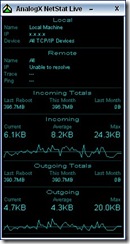
netstatSometimes I like to look at old apps that still seem to work fine. Here we have AnalogX NetStat Live. Like most other small utility softwares of AnalogX, this is also a still very handy utility. The development of the software stopped at around 2001 I guess.

Basically, it is a net usage monitoring utility. It shows a simple geraphical display of all incoming and outgoing internet traffic. Statistics of net usage after Last Reboot of system and the whole month net usage are also shown.

Overall it is a very basic utility, very useful for broadband users with bandwidth usage limit. Although there hasn’t been an update for a very very long time, it still seems to work fine without any bugs. I haven’t actually tested it on Windows Vista, but I guess it should work fine.

Related Links

Tags

Technorati Tags: ,
del.icio.us Tags: ,

Friday, March 6, 2009

RenderSoft CamStudio

camstudio[5]Want to record everything you do on-screen? Presenting RenderSoft CamStudio. This tiny little open source software records whatever you do on your computer into an AVI file. Its a great tool for basic presentation of software.

CamStudio supports just the basic set of recording options including fixed-region recording, full-screen recording, video recording frame rate, virtual cursor & highlight cursor, record audio from microphone or speaker, Autopan, basic annotations, etc.

Also available with this tool are two separate tools. One is a basic AVI Movie Player. Another tool available is the SWF Producer. The SWF Producer converts an AVI file to SWF file so that they can be integrated in to web-pages.

Final note, the last update to the main program was in around 2007 I think. Hope, new updates do keep coming.

Related Links

Tags

Technorati Tags: ,,
del.icio.us Tags: ,,

Wednesday, March 4, 2009

Last.fm

lastfmThis is the age of social networking. With thousands of social networking sites, another large set of social networking apps and so on, social networking is something to stay. People have gone to the habit of showing large part of their life on the internet. Their hobbies, interests, friends etc. etc. In fact, almost all major social networking sites have options to update what you are doing right now and display it on the profile. This can even be updated via mobile.

Now coming to this software, it is another social networking tool. It mainly enables you to “scrobble” songs that you are playing. By “scrobble” we mean that whatever you are playing right now will be updated to the internet. It will be available on your profile on Last.fm website.

It does not end there. Some “apps” are available on other social networking sites such as Facebook, that enable you to get updates of the songs being played right in to your Facebook profile.

Lastly, it also has a basic interface that fetches the album and artist details of the current playing song from the internet. Often these details are also associated with photo of artist and albums.

Related Links

Tags


Sunday, March 1, 2009

Software Informer – Keep your software up-to-date

imageHave lots of software installed on your system? And are you having a hard time searching and updating all the software. Then, this tiny little utility is for you. In basic terms, it simply checks each of your installed software with it's server for any latest version. When started, it shows a list of software for which update was found. It also creates a personalized web-page to download the updates specific to the software installed in your system.

Software Informer can also be minimized to the system tray from where it will constantly monitor for any updates found for your software and will inform you in the form of a pop-up when available.

I have to note a final point though, like any such software, this can also come up with some false-positives. I mean, it might show that one of your software needs update. But when you check with the software publisher's website, you might find that you are already using the latest version. That means, the version on Software Informer's server might be wrong.

Related Links

Tags

Sunday, February 22, 2009

eBoostr – ReadyBoost for Windows XP

imageTwo of the best features I found in Windows Vista were ReadyBoost and SuperFetch. For those who don't know much about these features, ReadyBoost converts your spare pen-drive in to a large system-cache effectively speeding up your system. Some people like to describe it as a means of making pen-drive act as a system RAM. Anyway, I really wanted this feature on Windows XP. After lots of searching, I found eBoostr.

eBoostr is not just a replica of the ReadyBoost features for Windows XP. It has several extra features like the ability to make use of a portion of your system RAM as a system-cache, effectively making it superior to the ReadyBoost feature. It also supports Windows Vista and helps you replace the ReadyBoost feature on Windows Vista too.

eBoostr also comes with a "Power Saving Mode". If you are using a notebook computer and the "Power Saving Mode" is activated, as soon as your notebook switches to using battery, eBoostr starts caching more actively, thus making less use of the hard disk, which in-turn increases the battery life.

Related Links

Tags


Technorati Tags: ,,
del.icio.us Tags: ,,

Thursday, February 19, 2009

MediaCoder - The universal audio/video transcoder

image Here is a great tool for all you multimedia lovers out there. MediaCoder is an open-source application capable of transcoding audio/video files between several well known formats. It is also capable of doing some basic set of video editing, which include splitting and joining videos, resize, crop, rotate, etc. It also comes with in-build extension to help convert to popular video formats supported by various Mobile Phones, Digital Media Players, Game Consoles, Home Players, PDA etc. Various extensions are available to convert to specific models of these equipments. For example, it has pre-build extension to convert to iPhone, Nokia N70, PSP, Apple TV etc.

Interface

The interface looks quiet simple and easy to use. But, within a few seconds of its use, you can find how much complicated the interface gets. It might take some time to get used to the multi-tab based interface that it sports.

image

All you have to understand with the interface is that, when you change the tabs in the left section, the tabs in the right-section completely change to indicate all the options related to the topic you had chosen from the left tab. For example, if you choose Audio from the left tab, the right tab will show tabs for the audio formats that it supports transcoding to.

image Also a bit confusing is the way the labels of various controls in these tab act. For example, if you choose the Audio tab, the Source, Encoder, Resample, Channel, etc. which are to left side of the various drop-down boxes, MediaCoder brings up advanced features related to these options.

Audio Conversion

MediaCoder features one of the best audio conversion system. It supports a wide range of formats to convert to: MP3, Vorbis, AAC, eAAC/AAC+, WMA, AMR, FLAC, APE, etc. It doesn't actually have its own convertors for any of these formats, but instead use the various freely available converts to do the job (e.g. MP3 can be encoded using LAME, Helix or Fraunhofer encoders).

One thing to remember when encoding audio only, is that you should go to the Video tab and unselect "Enable Video".

Video Conversion

First step to enable Video conversion is to go to the Video tab and select the "Enable Video" checkbox. For basic format conversion, this tab has option to choose the video format and the encoder. One thing to be very careful after this is that you should go to the audio tab and set a correct audio type that can be supported by the video type. For example, if you are converting to MPEG or XviD, you should choose LAME Mp3 from the audio tab.

Most of the other tabs within the interface are also related to Video Conversion. One important section is the Picture tab. It has options to resize, crop, change frame rate, aspect ratio etc. You can even use the Cropper button to play the movie in an in-build player and crop it interactively.

The Time tab is a very useful section if you want to cut a part of the video. It is specified by providing the Start Position and Stop Position times. If these seems difficult, you can use the "Select" button to interactively choose the section you want to cut.

Summary

Although its interface might seem a bit complicated for some people, it is one feature rich audio/video converter. Just play around a bit with the interface and you could get used with it.

Related Links

Saturday, February 14, 2009

Windows Live Writer

imageMy search for Software Tools that could help me blog better, brought me to this neat little piece of software from Microsoft. I had certainly not expected a blogging tool from Microsoft. It also turns out that Windows Live Writer is a free software. It is part of the Windows Live.

My first hunch was that it might only be compatible with Microsoft's own blogging service, Windows Live Spaces. But, it really turns out that Windows Live Writer is also compatible with SharePoint, Blogger, LiveJournal, TypePad, WordPress, Community Server, and many other services.

Anyone with basic usage knowledge of a word processing software can quickly start using the software. The interface resembles a word processing software with basic formatting functions.

Managing Blogs

To begin with, the first thing to do would be managing the blog account by associating it with the writer. This is quiet easy. Just choose Add Weblog Account from the Weblog menu and a wizard appears. If you are going to manage a Windows Live Spaces or Sharepoint weblog, the options are available in the main screen. But when it comes to other Blogs such as Blogger, WordPress or other services, simply choose Another weblog service from the screen and in the next screen provide the URL of the blog, the username and password. Windows Live Writer will automatically try to detect the type of blog and setup the parameters.

Views & Usage

All the basic formatting options are available in neatly organized menus and toolbars. Inserting images are quiet simple. Just paste them into the window. Windows Live Writer will automatically upload the picture to the blog if your blog service supports it. Simply clicking an image brings up several options on the sidebar to layout and optimize the image.

Related Links

Thursday, February 12, 2009

Free Download Manager

image These days almost all decent managers have turned to being shareware. One of the remaining few download managers is Free Download Manager. It recently became fully open-source, which means it will remain free forever. Being free doesn't mean it has very few features. In fact, it is one of the most feature-rich download managers available. With features such as Pause/Resume downloads, Segmented Download, Audio/Video Preview during download, Flash video download (from sites like YouTube, Google Video, Blennus, MySpace etc.), BitTorrent support, Scheduler, Site Explorer, Site Password Manager, HTML Spider etc.

Interface

The interface can't be simpler than this. Just the simple set of buttons. The left side tree structure contains ways to filter out the downloads you want to see. It can be based on type, status, etc. The right side, on the other hand, is a split view between the list of downloads (on the top) and the details of the download in the bottom. The details section is further categorized into tabs to show the Log, Progress, Media Preview, and Community Comments (Extra tab might appear for Torrent downloads).

Flash video download

The Flash video download section is a relative new section to Free Download Manager. It allows you to download video files from some online video sites such as Google Video, YouTube, Blennus, MySpace, Dailymotion, LiveDigital etc. This section also has the option to convert the downloaded file between avi, wmv, mpg, mp4 and mp3 files.

Torrents

Torrents have become the hottest way to download stuff on the Internet. Torrent support is a brand new addition to Free Download Manager and you shouldn't expect much from it. But still, it does a quiet descent job with torrents. Please note that the "Torrents" section might only be available in the latest beta release. The latest version has support to select the files with a torrent files that you would like to download. You can also prioritize the files you want to download. Options are also available to restrict the Seeding of the file.

Scheduler

Free Download Manager comes with a very advanced scheduler which can do tasks such as Launch Program, Start/Stop download, Establish/Hang-up dial-up connection, Change traffic usage mode, Shutdown/Hibernate/Sleep system, etc. It can also be triggered on various events such as A given date/time, Certain days of every week, Every few intervals, At start-up, download completed etc. Tasks can also be deleted/disabled after completion.

Site Explorer

The Site Explorer is a unique part of Free Download Manager which allows you to view web sites in a folder structure. This allows you to download files more easily. It also facilitates in the browsing of FTP sites.

Site Manager

A section that stores the User Name/Password related to a web site. The user name and passwords are stored from the different sections of the application.

HTML Spider

Ever wanted to download a complete website or a part of the website. HTML Spider helps you download an entire section of a given website to your hard disk by following the links in the given page and the links within those pages and so-on.

Summary

Free Download Manager is one of the best download manager you can come up with. It has almost all the features you can expect from a download manager and more. It is also highly customizable using the Options available. Although, I have to admit it, the Options section might get a bit confusing for starters. Anyway, the free download manager can be downloaded from the Official Site.

Related Links

Friday, February 6, 2009

Media Player Classic

Media Player Classic InterfaceMany people mistake Media Player Classic for an older version Windows Media Player and simply tend to ignore it. This confusion is because the interface looks very much like Windows Media Player 6.4 . This open source media player for Windows was created by a programmer called "Gabest".

Installation of Media Player Classic is quiet simple because it does not have an installation. It is just a single EXE file and can be run without any installation. Media Player Classic can be downloaded from SourceForge.net . The only issue here is that the original product is not under active development since 2006. A separate group had been working in fixing major issue found in the Player and adding new features. This modified version can be found at a separate website Guliverkli2.

You must note that although it can read most of the popular audio formats, it is only able to read most video formats if the correct codec is present on the system. It appears to have built-in support for VCD, SVCD and DVD formats. It also has support for DVD menus and sub-titles. But apart from that, the function as a complete Media Player suite, it is recommended that you install it with some of the popular Codec Packs such as K-Lite Codec Pack and Codec Pack All.

Interface and Speed

One thing you would love about this media player is it's speed and simplicity. The startup speed is quiet quick and the interface is quiet responsive. You wouldn't have any problem to start using this media player because the interface is quiet common. The plain old seek bar and the standard player button with the standard volume control. The volume can also be controlled using the wheel of a mouse. Most other keyboard shortcuts are similar to that of Windows Media Player. For eg. Space can be Used to Play/Pause and Alt+Enter can be used to toggle the Full Screen Mode.

The palyer interface comes in 3 modes. Minimal, Compact, and Normal mode. It can be changed from the View->Presets sub-menu.

Options

image Media Player Classic are extensively customizable.

  •  Player - This section has the basic options such as the Single/Multi Media Player window mode, Show/Hide Taskbar icon, Format association, Autoplay configuration, Keyboard configuration, Logo to be used when the player is idle, and the Web Interface (The web interface module appears to be a work in progress and wouldn't work)
  • Playback - All basic playback options are available in this section. This includes the playback repeat rate, default zoom level, DVD/OGM advanced settings, Video rendering mode and Audio Output device.
  • Internal Filters - Various settings related to Internal Filters are done here. The Audio Switcher sub-section can be used to filter out the audio output.
  • External Filters
  • Subtitles - All settings related to how sub-titles are rendered.
  • Tweaks - Some basic tweaks like disabling XP-themes, Free Window Resizing etc.

Finally

Media Player Classic is a great add-on player that can be installed along with any other Media Player you might be using. For one thing, it doesn't use much space. Hope you have a great video watching experience.

Further Reading

Monday, February 2, 2009

Sandboxie - Try-out new software without messing-up your System

image If you love to download, install and try out lots of Software, then this software is for you. The basic problem when installing and trying out lots of Software is that, the software tend to leave behind several additional files. It also makes lots of modification to the system, which might sometimes be undesirable.

What is Sandboxie?

Sandboxie is a software that helps you run an application in a Sandbox type isolated environment. To be more plain, you can install and try-out new software without affecting other parts of your system.

How does it work?

At the base level, any file operation done by an application run within the Sandboxie program will be intercepted by the program. The modification of the file (no matter which file it is) will not be allowed and instead a new file is created in a private folder of Sandboxie. Usually, the Sandboxie files are stored in C:\Sandboxie directory. Any future access to the file from within the Sandbox is re-routed to the file within the Sandboxie directory.

Application Usage

The application usage is apparently quiet simple. It has a very simple interface with a list of available Sanboxes. To run an application in the Sandbox, simply right-click the Sandbox and from the "Run Sandboxed" sub-menu, choose the application you would like to start. When an application starts running, you can see its process in the main list view window of Sandboxie.

When an application is started using the Sandboxie program, it's title bar will contain [#] symbol in the beginning and end.

Limitation / Problems

Not all programs are compatible with Sandboxie. You should take special care when running system level applications like anti-virus from within the Sandbox. Also, most Games would probably never work in Sandbox.

Another issue would be with speed. All these application intercepting can really slow down the application. You shouldn't be using an application within a Sandbox if you intend to use it quiet often. It would really slow the application as time goes.

Conclusion

Sandboxie is a great program if you like testing out the different applications available on the net. The most important thing it provides is security. Even if a virus is run from within the Sandbox environment, it can never affect the system.

Related Links


Technorati :
Del.icio.us :

Sunday, January 25, 2009

Google Chrome Beta - At Last......

imageAt last, it's here. The browser I have been waiting for ages. The browser from Google. Google Chrome. I had heard a lot about it. Yesterday, I was surprised to see the news of its launch at the official Google Blog. After seeing and using all the other products from Google, I was sure this one would also be one of its kind. I went forward and downloaded it from the Google Chrome site.

Interface & Appearance

The interface looked quite simple. No fancy animations or other such affect. Just a basic skin, with the standard browser buttons. Of course, like all other browser, it too has a tabbed structure. That is one of the best thing I like about the modern browsers. No menu bars are available. All the menu items are stacked in to the last 2 buttons to the right of the address bar. Most of the menu items are the standard ones found in any other browser. So, I am not going deep into it.

The tab structure does have a very unique feature not found in any other browser. You can simply drag a tab out of the browser to create a new window containing that page. In fact, dragging tabs between various open windows of Google Chrome is a breeze.

Speed & Memory Usage

imageAt first use itself, I felt it has more speed that most other browsers I used (Internet Explorer 8, Mozilla Firefox 3, Opera 9, Flock 2,...). All pages seem to load quickly. Of course, my calculations could be wrong, considering the fact that, my Firefox and Flock browsers are clogged with dozens of Add-ons installed. Next, I decided to check the memory and CPU usage using Process Explorer. Here, I got a real surprise. I had around 7 chrome.exe running in my system. After a bit of study, I understood the fact that, for each tab you open in the browser, a different EXE is launched. In simple worlds, if you have 10 tabs open in the browser, it is (I assume) equivalent to running 10 instances of the browser. I am not sure about the implication of this on the system resources over time.

Webpage Compatibility

I didn't have much problem loading most websites. But, many Ajax based sites like Hotmail are not likely to work. I was surprised when the Yahoo! Mail's Ajax interface did work in the browser. The explanation is simple, Google Chrome uses the WebKit rendering engine used by a few other browsers such as Apple's Saffari. Gmail worked perfectly with the browser. Of course, no surprise there, what else would you expect from a browser created by Google itself.

Security & Stability

From what I have heard, it seems Security is one of the main focus of Google Chrome. In fact, I guess this is the reason why each page is run as a different process. Each process runs like a sandbox with very limited access to the outside world. The browser also maintains two separate updated blacklist (one for phishing and the other for malware).

Stability is also one important part of the browser. Most users love to have lots of webpage open and running. Here again, the benefit of running each webpage in a separate process is that, if a webpage gets crashed, it would not affect the other open pages. To make things even better, it also has an integrated taskbar that displays all the open page instance of the browser. It also displays Memory Usage and CPU usage for each separate page.

Standards

Being a Google product, I was pretty much sure that the Web Standards support would be perfect with this browser. But still, to test it out, I just ran the Acid test. Here are the results:

image   image   image
Acid 1   Acid 2   Acid 3

As you can see, it didn't pass the Acid 3 test. Put it did come pretty much close. And anyway, most other browsers do not pass the test. So, I guess that's fine.

Few More

The browser does have a few other unique features integrated into it. Google Gears is one of them. It is a most promising standard from Google to support Off-line storage of data for supported websites. The best use of this is for the various web applications being created that need not have a server to run, but will need to store various data on the local system. Google Chrome also has a "Create Application Shortcuts" used to create shortcut for your commonly used Web-application on the Desktop, Quick Launch, or Start Menu. When run in this mode, the application will not display tabs or address bar. In effect, you get a full-screen display of the web-application.


Sunday, January 18, 2009

WinRAR - The ultimate in RAR and ZIP compression

imageWinRAR is the only official software to support creation of RAR files. RAR files have always been known for their excellent compression ratio. I have long given up other compression softwares like WinZip in favor of WinRAR. The main thing that attracts me is its simple and quick interface. The interface resembles to the classic look of the good old WinZip. WinRAR supports compression and decompression of RAR and ZIP files. Apart from this, it also supports decompression of CAB, ARJ, LZH, ACE, 7-ZIP, TAR, GZip, UUE, BZ2, JAR, ISO and Z formats. It also supports certain combinations of compression such as TAR.GZ and TAR.BZ2. Now getting to the size of the software, it one of the very few compression softwares left that can fit into a floppy disk. The size is just under 1MB.

Core features of WinRAR:

  • Shell Integration - Like most other standard compression softwares, it too supports Shell Integration. It can be associated with all the supported formats. It can also show options on the context menus of any selected file (or folder) to compress it or compress and e-mail it.
  • imageFile List - The file list is a very powerful section of the software. Unlike the file list of other software, the file list within WinRAR can be used to browse the contents of Hard Disk, CD/DVD Drive etc., and not just the compressed archives. In fact, the address bar is very similar to the Windows Explorer's address bar and shows a list of major folders and drive. Owing to the various vulnerabilities of Windows Explorer, I often end up using WinRAR to browse files. You has have a shortcut command Ctrl+D to quickly open up the Drive selection menu.
  • Tight Integration with Explorer - The integration does not end with file associations. You can drag a file within an archive to a folder in Explorer, and WinRAR will automatically extract the file to the specific location. Also, if you choose copy from the interface of WinRAR and paste in a Windows Explorer window, WinRAR extracts the file to the location.
  • Convert archive to Executable (SFX) - For ZIP and RAR files, it supports a feature to convert a given archive into a self extracting EXE file. This means, after converting to EXE, it can be decompressed even on a system with no decompression softwares available. The SFX module is quiet powerful and you have the ability to create a miniature "Installation" for distributing applications.
  • Recovery Records - WinRAR can store self-recovering records within RAR files so that they can be restored once the archive gets corrupted. There are different levels in Recovery Record percentage. The more, the better.
  • Password Protection - Like all other compression softwares, it too supports password protection. In other softwares, even if you provide a password, the file list is not encrypted. You can easily open the file and look at the file list. You could also add your own file into the encrypted archive without knowing the password. In WinRAR, you can enable complete encryption, by which, the file list will also be encrypted.

Overall, this is a handy little utility that can help you open a vast range of compressed files. There i only one problem know with WinRAR. That is speed. The compression speed of RAR is very less compared to other formats such as ZIP. Anyway, no harm in having it installed.

Further Reading

Technorati : , , ,
Del.icio.us : , , ,

Monday, January 12, 2009

Opera - The fastest browser on earth

My all time favorite browser, this is probably my most used browser. I don't exactly remember when, but I think I first started using this browser from 2000. From the start, Opera has always been popular for its High Speed, Extreme Customization, Tabbed structure, Skinnability, Standard Compliance, Security, etc. Till date, Opera's implementation of tabbed browsing is the best compared to all other available browsers in the market. Also, it is the oldest browser to support session management. Lately however, Opera's browser share has been declining after the advent of Firefox. The latest version is 9.51. Some of the features supported are: Tabbed Browsing, Pop-up blocking, Fraud Protection, Download Manager, Bittorent Client, Search Bar, Web Feed Aggregator, Full-fledged built-in e-mail client (Opera Mail), IRC chat, Speed Dial, Opera Widgets, and more...

Tabbed Structure

As I have mentioned earlier, Opera is one of the earliest browser to implement tabbed browsing. In fact, if you were to compare the tabbed browsing of the various browsers available, you will find Opera's tab implementation to be far superior to others. In the current structure, you can drag the tab around quiet easily. In fact, you can also drag a tab from one window to another. Accidentally closed a tab? No worries, the basket to the right of the tab-bar holds a list of closed tabs. You can choose the tab and it will re-open.

Session Management

This is also one of the oldest features of Opera. If you close Opera, the next time you open Opera, all the tabs and windows that were open when closing Opera, will be restored. For many other browsers, session management is a very new feature. In Opera, when tabs are restored, all the pages are loaded from the cache. So, I can open Opera when a connection is not available, and it will still show the old pages. Crash recovery is also a part of session management in Opera. Opera keeps saving the session every few minutes. If Opera happens to cash, the next time you open Opera, you can resume from were you left.

Privacy and Security

Opera supports all the encryption standard to access secure websites. Main among these being SSL 3 and TLS. Security information, if available, is shown on the address bar itself.

Opera has the least amount of security flaws compared to all other browser.s Also, when a security issue is found, Opera is quick enough to release a new patch.

Standards Support

Opera is one of the first browser to support Cascading Style Sheets (CSS). Today, Opera supports many web standards, including CSS 2.1, HTML 4.01, XHTML 1.1, XHTML Basic, XHTML Mobile Profile, XHTML+Voice, WML 2.0, XSLT, XPath, XSL-FO, ECMAScript 3 (JavaScript), DOM 2, XMLHttpRequest, HTTP 1.1, Unicode, SVG 1.1 Basic, SVG 1.1 Tiny, GIF89a, JPEG, and full support for PNG, including alpha transparency.

Also, Opera is the first Windows browser to pass the Acid2 web standards test.

Opera Mail

Opera is the only major browser that comes integrated with an email client within the interface itself. The mail client will co-exist with all the other tabs you are browsing. It supports both POP and IMAP. At first appearance, it might look like a very weak e-mail client. But it is one of the best e-mail client I have ever seen. In Opera, there is no concept of folders. Instead, we have the concept of labels. This might be a bit confusing for new users. But believe me, it is quiet easy and powerful once you start using it. You can add multiple labels for a mail. And when you click on a label, it filters out all mails with that label. My favorite feature only found in Opera is that it can auto-detect mailing-list and create separate views for it. Also, the messages can be show threaded (the mails and its responses are grouped together).

The search within the mail client is very powerful. It is implemented as a "Search as you type". So, the search results are almost instantly available.

There is a small short-coming here. Opera Mail does not support composing HTML mails. In simple words, you cannot compose formatted (bold, italic, different size etc.) mails.

Lots More Left....

Due to shortage of time, I am stopping here. Opera has lots and lots of features. It is best if you download and try it out. For a starter it might not go well. But believe me, after some use, you wont feel like using any other browsers.

Speaking of all these, I still have to mention some shortcomings. One major problem with Opera is that it does not support extensions. Extensions can be found in Firefox and Internet Explorer (Add-ons). But in Opera, this is not possible. Plug-ins written for Netscape are supported by Opera. But, they cannot be a replacement for extensions as they cannot interfere with the interface. Also, owing to its high standard compliance, it does not support certain web pages that don't follow proper standards.

Related Links


Technorati : , , , ,
Del.icio.us : , , , ,

Saturday, January 10, 2009

DivX Player for mobile

I love my Nokia N73 very much. I know the model is now a bit old. But I simply love it. The best thing I love about Symbian based mobile is that it supports a vast range of software. At times, I like viewing video clippings or video songs on my mobile. Of course, I could use the internal Video Player. But, in my opinion, it sucks. So, I went out searching for different options to view video on my mobile. My preference was a player that support XviD or DivX formats. Of course, there is the ever popular Smart Movie Player. But, I wanted to search for something free. That's when I met the DivX Player.

After installing the player, I found it's interface to be quiet similar to that of Smart Movie player. Now to test the player, I encoded some video clipping into DivX and XviD formatted AVIs. It supported both formats. The DivX player is available for Windows Mobile 5 and Later, as well as, Symbian OS 9.0 (S60 3rd edition, UIQ 3.0) and Later.

Player interface is straight-forward. On start-up, you get a list of videos available on your mobile. If you want to update the list, choose Options->Refresh list. Pressing the joystick opens the selected video. By default, the video is shown in a small screen. But you can choose Full screen mode from the Options. After choosing Full screen, you will have to tilt the mobile to view the movie.

The joystick controls are also very simple. Left and Right for Rewind and Forward, Up and Down for Volume Up and Down. In full-screen mode, as the screen tilts into landscape mode, the joystick control also changes accordingly.

There are a few options available in Settings like changing the Audio/Video Sync. Overall, I find this a great software for your mobile device. So, if you have a supporting mobile. Just go and download the software. After all, its a free software and comes directly from the official DivX people.

Related Links

Technorati : , , ,
Del.icio.us : , , ,

PortableApps.com - Collection of Portable Apps

portableappsToday I was just lazily surfing through SourceForge.net. You see, I love trying out Open Source softwares very much. That's when I met PortableApps.com. Basically, it's just a platform for a large collection of portable softwares. PortableApps is an ideal solution for carrying your favorite apps in Pen Drives. It also has folders to store Documents, Music, Pictures, Videos etc. It also has option to Backup and Restore data.

PortableApps come in 3 flavors:

  • Platform Only - This edition contains just the PortableApps stub. No extra portable apps are included. Extra apps should be downloaded and installed into the application separately.
  • Suite Light - Apart from the PortableApp stub, this edition also contains several important portable softwares. Some of these are: Mozilla Firefox (Browser), Mozilla Thunderbird (E-Mail Client), Mozilla Sunbird (Calendar Client), ClamWin (Anti-virus), Pidgin (Instant Messaging), Sumatra PDF (PDF reader), KeePass (Password Manager), Sudoko (Game), Mines-Perfect (Game), CoolPlayer+ (Audio Player), AbiWord (Word Processor) etc.
  • Suite Standard - The only difference with the "Light" edition is that OpenOffice.org (Office Suite). It comprises of Writer (Word Processor), Calc (Spreadsheet), Impress (Presentations), Base (Database Utility), and Draw (Drawing).

All the apps included are open-source and have been customized for PortableApps.com. Apart from these apps, a collection of customized portable apps are available at ProtableApps.com . Overall, if you are an extensive user of pen drive and have to switch between different systems, this app is a must for you.

Wednesday, January 7, 2009

Flock Browser - The Social Web Browser

flockMost users have hardly heard about this browser. But, believe it or not, the community of this browser is quiet big and active. Basically, it is an Open Source browser branched out from the most popular open source browser "Mozilla Firefox". This means that, Flock directly posses all the abilities of Firefox. Most of the extensions of Firefox are compatible with Flock. Any specific page written to support "Only Firefox" will work in Flock. In short, it can do all that Firefox can do.

Why Flock when it is a copy of Firefox?

Flock can be considered to be FireFox on steroids. To a newbie, the interface and options would appear to be a copy of Firefox. But, a few extra buttons are visible. The real power reside behind these buttons.

Social Networking is the hot stuff on the net right now. Blogs, Social Communities, Videos, etc. Flock is a "Social Browser". This means, it has been made from "ground up" to support many popular social networking sites and make social networking much easier.

At the time of writing this Blog, the Version 2 Beta 2 of this browser supports Digg, Facebook, Flickr, Pownce, Twitter, YouTube, Photobucket, Picasa, Piczo, Blogger, Blogsome, LiveJournal, Typepad, Wordpress, Xanga, Self-Hosted Blog, del.ico.us, Magnolia, AOL Mail, GMail, and Yahoo! Mail. Now that is a huge list.

Making Blogging Easier

flock_postblogAre you into blogging? If yes, Flock is the browser for you. It is the only browser with in-build Blog Editor. The blog editor is pretty much perfect, with option to insert pictures, edit tags and edit HTML. You can post directly to most of the popular Blog services from within the editor. It also comes with a Preview pane to see a Preview of your Blog.

The picture uploader module is integrated into the Blog Editor window. So, if you paste a picture or if you paste a picture file, the file will be uploaded to a Picture Sharing Site (Picasa, Photobucket or Piczo) and the link will be integrated into the blog.

It does not end there. Most big pictures and videos you see on websites will have a flock toolbar attached. This toolbar will have option to "Blog" the pictures. Clicking this brings up the Blog Editor with the picture attached. You can also drag pictures from any site, into the Blog Editor window.

Photo Uploader

The Photo Uploader is a basic, but quiet useful utility, which helps batch upload of pictures to online web albums on Picasa, Photobucket or Piczo. The uploader has inbuilt options for resizing and cropping pictures.

Bookmark Integration

Tagged bookmarking has become quiet popular with the advent of sites such as del.ico.us . For most browsers, there exist extensions and links to Bookmark a given page in these online bookmarking services. Flock too supports bookmarking to del.ico.us and Magnolia (inbuilt). What sets it apart is that, it also integrates your online bookmarks into the Favorites menu of the browser, making it easier for accessing the bookmarks from any place.

People

Are you an extensive user of online social networking sites? Flock integrates with many Social Networking sites, Facebook, Flick, Pownce, Twitter, YouTube, Digg, etc. Integration with other social networking sites such as Orkut are still pending. The sections helps in direct media sharing from within the browser.

Media Bar

Media Bar is a small strip that appears across the top of the tabs. It can show pictures from your online photo albums, or videos from your favorite video sharing site.

RSS and Mail Integration 

Like all modern browser, it too has a good RSS Integration.

It can also integrate with your online mail provider such as Gmail, Yahoo! or AOL and check for mail regularly. Also, email links in webpages can be redirected to these online mail sites.

Packing Up.....

Overall, Flock is a very innovative browser. I recommend that you give it a try. It should please you (at least for a while). The memory usage is also quite impressive (considering the heavy loaded features it support).

Sunday, January 4, 2009

Edit Plus

editplusThis is one simple text editor I love the most. The main plus point of this software is that, with all those complex features it support, it is still a very fast and simple text editor.

From a developer's point of view, it supports color coding of: HTML, ASP, C/C++, Perl, PHP, Java, JSP, JavaScript, VBScript, CSS, XML, C# and SQL. To support more languages, you can download or write your own syntax file. The syntax file structure is very simple.

Features

  • Syntax Highlighting support for: HTML, ASP, C/C++, Perl, PHP, Java, JSP, JavaScript, VBScript, CSS, XML, C# and SQL.
  • Tabbed structure when showing multiple files.
  • Ability to capture outputs from external Console Applications (e.g. It can capture outputs from a Java or C++ compiler and show it within the interface.
  • Regular Expression - The Regular Expression supported by the Find & Replace of this software is probably the best I have seen in any software.
  • FTP - Ability to open and upload directly from an FTP server
  • editplus2Has many text formatting features like: Trim Trailing Spaces, Convert Tabs to Spaces and Vice Verse, Join and Split lines, Increase and Decrease Indent, Line Comment and Uncomment, etc.
  • Column Selection - This is probably the only Windows Application I have seen that supports column selection. A cool feature if you want to delete the starting few character(s) of all lines in a file.
  • Integrated Browser - Many software support Integration of Internet Explorer. So, nothing new here.

Overall, this is a great utility for developers. Of course, it cant replace other major development environments. But still, this can be a handy utility in your toolbox.